Showing posts with label theatre scripts. Show all posts

9 January 2013

Sending / submitting a script - Watch out!

This post follows on from my previous entries about formatting scripts for film, TV, radio, and theatre (click on the relevant word to see that post).
Before we get started, apologies for the lack of pictures. I'm posting this from a domain that blocks Blogger's picture upload facility. I will try to add some later, but hopefully the text is clear enough (sorry if that's not the case).
Someone who followed one of my posts was understandably agrrieved when having followed the advice the found that once they'd submitted their script via e-mail the attachment was bascially unformatted (note, this can also happen if you upload from a brower). How could this be?, asked my incredulous corresponent. Well, there really are only a couple of ways this could happen, both of which are easily solved (and both of which are common when learning the ropes of things like Microsoft Word):
  1. You closed the file and, somehow, forgot (or didn't realise how) to save it. In that case all the formatting will be lost and, sadly, there is no way to recover it without redoing it; and
  2. You attached the file to an e-mail (perhaps in Outlook) before saving it, which is a common pitfall.
In either case, don't beat yourself up about it. These things happen, especially when you're learning a new way of doing things. The good news is, once you understand where you went wrong it's easy to avoid making the same mistake (which means you're learning - yippee).

Save the Word

The first and easiest way to ensure your formatting is not lost is to simply save the file. You can do this by clicking on the 'Save' button. Tip: There's also a keyboard shortcut you can use: just hold down the Ctrl and S keys at the same time (Ctrl+S). That will overwrite the previous (unformatted) version of your document. If you want to keep the old version and make a new one you can also do that relatively easily. Click on File->Save As and then give your document a new name.

Tip: It's a good idea to use a version number. I use the form my-exciting-script-01a then every time I do a minor revision I increment the letter, so the next minor version would be my-exciting-script-01b) then when I do a major revision I increment the number and set the letter back to a (so the next major version would be my-exciting-script-02a). You can add the date to the name if you want, though the date you last saved a version is available by hovering your mouse over the file name in Window's Explorer or looking at the file properties in Word (File->Info in Word 2010 and above).

I should also add that when you close a file (either by clicking on 'File->Close' or clicking the 'x' at the top right of the screen), a dialogue box pops up asking if you want to save the file so you can apply the above at this point too, if you like.

Attaching a script to e-mail (or uploading from a browser).

If you use a Window's Explorer window to upload your script (or any document for that matter) and you haven't saved the document first, what you're actually doing is uploading a previous version of your document. This is because the edits and changes you're making to your document in Word are not actually saved back to your document until you tell Word that's what you want it to do. They're saved in memory and then, i fyou have auto-recover turned on) saved to a special place on disk that it not your document. Word does this so that you can cancel your changes if you decide that you don't like them after all.
When am I using Window's Explorer? Pretty much all of the time. Here's some examples:
  • When you click on a button in your browser (regardless of which browser it is) that says something like 'Upload' and a window opens to allow you to select a file to upload;
  • When you click on 'Attach' from an e-mail program (regardless of which e-mail program you use);
  • When you click on Window's Explorer (Okay Toby, I'm not an idiot you know. Sorry :| );
  • When you use Internet Explorer (Yep, it's really a version of Window's Explorer that changes its functionality to accomodate the fact that you're using the Internet).
There are many other examples, but I think the above list is sufficient for this post :)

The thing is, if you haven't saved your work you will be uploading / attaching an older version of your document. To avoid this, simply follow the 'Save the Word' instructions further up this post.

A Word on Microsoft Outlook

If you use Microsoft Outlook as your e-mail program you can use the 'Save and Send' option in Word (this may also be possible with some other e-mail programs, but Outlook is the one I know it works with).
To do this, simply click 'File->Save and Send' then select the 'Send Using E-mail' button. This will send a saved version of your file to whoever you send the e-mail to, but beware: it won't necessarily save the file on your computer. You will still need to do this. However, if you forget or something goes wrong, a saved version will be accessible in the 'Sent Items' folder of Outlook.


Again, I hope this has all been useful. Good luck!

Toby

26 December 2012

Using word for radio/theatre scripts


(For advice on formatting a film or TV script, click here.)

In my last post, I was rather film-centric. Since then, I've had a request about radio scripts which are different from film and TV scripts in that the character name is usually to the left of their first line of speech. So, using the opening text in my fictional last post, we would have something like this:

TOBY: Ah, Distaff. I'm glad you came round. I need to have a word about your stuffed penguin.
DISTAFF:  What about it?

I haven't formatted the above at all. I just wanted to show that they'll be on the same line. Here's how it looks in Word:


You can see (because I have 'show all formatting' on that I have put a couple of tabs in the above, though I haven't done anything else. However, as I've not formatted anything yet, the speech of both characters isn't aligned.
I don't propose to repeat the earlier parts of my previous post so if you want to know the basics of formatting please refer to that entry which can be reached by clicking here.
What we need to achieve are to:
  • indent the character's name so that we have some extra left margin;
  • align the names with each other;
  • align speech;
  • set the line spacing to be double spaced;
  • ensure we have a line of space between speech.
I'm also going to show you how to set the page margins so that you have the right spaces at top, bottom, left and right.
All this, I promise, is really quite simple. Again, it's just a question of learning how, which I hope you'll be able to do here without it causing your brain to implode on itself! :)

Setting the Radio Dialogue

First of all, select the first line of text by moving the mouse so that the pointy arrow is to the left of the text and pointing towards the top righthand side of the screen, then clicking. The background for the line will loook like this:
Next, bring up the 'Paragraph' panel on the ribbon by clicking on the 'Show Paragraph Dialogue' button (circled in red):

You'll get the a dialogue box that looks like this:

We don't have to worry here about the margin becasue we're going to do that later. Here's a picture with a step by step guide on how to format the paragraph:
In case you can't read the boxes on your monitor, here's what I did:
  1. Make sure you have 'Left' chosen from the drop-down list for  'Alignment'. It probably is this value, but I included it here to be sure.
  2. Under the word 'Special', select 'Hanging' from the drop-down list. Hanging means that our character name and our speech will align differently to each other, but still can be on the same line if we want them to be. Because our 'Left' is '0 pi' and our 'Hanging' is '6pi' character names will always be on the left margin and speech will always be 6 pi in from that. You could make this 9 pi if you have longer character names (or any value you like, really). I just chose 6 pi because it seems to work with my script.
  3. Select 'Double' for your 'Line spacing' value. This ensures that you speech is double-line spaced.
  4. Ensure that '0 pt' is set for 'Before' and set the 'After' value to '12 pt'. You'll probably find that 'Before' is already '0 pt' so there may be nothing to do there, and, depending on your version of Word your 'After' will be '6 pt' or '10 pt'.  '12 pt' is roughly an extra line of blank space after your character speaks.
  5. Click 'OK' to close the dialogue box.
Now you're document will look like this:


Our text is looking good, but there's still two things wrong with it. The first is that the character's name is not uppercase, the second, we're not using one of the recommended fonts (Arial or Times New Roman). We can fix both of these problems with relative ease.
To set the font, decide which of the recommended ones you want (I'm going for Arial) and select it from the fon't drop-down list on the Font panel of the ribbon:


I'm guessing, but it's unlikely your drop-down list will look the same as mine simply because you are very unlikley to have used the same fonts as me recently so that section that lists 'Recently used fonts' will be different and may even have 'Arial' as a listed font if you've used it recently. I have gone down to the 'All fonts' section and selected it from there, but you can always select it from another section if it's showing.
Now, select '12' from the drop-down 'Font size' list:
This is the box that simply has a number in it (usually 11 or 10 depending on your version of Word). Next, select your character's name ('Toby' in my example), and right-click your mouse. You get the following menu:


Put your cusrsoe in your character's name (in my case 'Toby'). Whilst holding down one of the Shift keys (the hollow arrows that point upwards - there's one on each side of your keyboard - that often have the word 'Shift' written above the arrow), press the F3 key. You only need to press the F3 key once to make the whole word uppercase (you can press it agian and it all becomes lowercase; again, and the first letter is capitalised; again, and we're back to all uppercase - it's quite a useful shortcut at times).


Now, our first line of radio dialogue is looking properly formatted, so let's define a style. We need to select the whole of our first line of speech. This is now on two lines becuse it was longer than could fit on one once we'd applied our formatting. To select it all you need to keep the mouse left-clicked as you move the cursor over both lines. Here they are selected:
Right-click on the selected text and move your cursor down the displayed menu until you get to 'Styles' then move over to the newly displatyed submenu and down to the 'Save Selection as a New Quick Style...' entry. Note, as you do this you may be alarmed by your text changing frantically on the screen. Don't worry. Nothing is really happening. This is Word showing you what would happen if you selected one of the styles in the submenu.  If you do accidentally select one press the 'Ctrl' button and at the same time press 'Z', then repeat the above. Here is what the submenu looks like with my mouse on the right line:
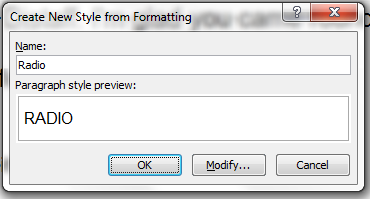
This will open up the following dialogue:
Overwrite the selected name ('Style1' in the above dialogue) with whatever you want. I'm going to call mine 'Radio' because I already have one called 'Dialogue', but it's really up to you.
You'll see that the preview pane has also changed to 'RADIO'. This may or may not happen as you click OK. Don't worry if it doesn't happen, Word will have taken it, I promise (unless you clicked 'Cancel', of course).

You're new style is now available from the Quick Styles panel on the ribbon:
You can now put your cursor in an unformatted line and by simply pressing the 'Radio' button on the Styles panel the line will be magically transformed. Here's what happened to my second line of dialogue when I did this:
Ah, oh, that's not right, is it? You see 'Distaff' isn't in uppercase. Well, sorry to say that we have hit the limitation of Word's styling capabilities which means we must do this first word bit manually (Grr!). But don't worry. As always there's a quick way. In fact, more than one. I'll go through them with you here:
  1.  Use the Shift+F3 trick. You can do this continually or you can do it once then move your cursor to the next line of dialogue, place it in the character's name and press Ctrl+Y (that tells Word to do exactly what it just did but in this new place).
  2. Use the Alt+Select method. Oh, that sounds difficult/clever/jolly (delete as appropriate). Well, it's not, really, but it's quick! All you do is hold the Alt key down whilst selecting the text. That is, you simply move the cursor over the lefthand side of the relevent lines (in my example I don't want to stray more than six picas - the value in my Hanging box from earlier). This is what it looks like once done:

  • You may not get it right immediately but if you keep trying you'll be just fine. Once you have them all selected, all you have to do is press Shift+F3 and they'll all become uppercase, like so:
You'll see that Word decided to extend the selection across other bits of text. Crucially, however, whilst it does this it doesn't apply your 'make this uppercase' instructioon to anything other than the column of text we selected, so donyou can ignore this feature.

Setting the page margin

Radio scripts need lots of margins. The advice often given is 3.5cm left and right. 3.5cm is 8.27 picas (yuk). You could use that value or - what I do - go for 8.5 picas because that's still generous (which is the key) but leaves space between margins that can be usefully computed if you ever need to. The choice, though, is yours. Here's how to do it using MS Word 2010:
Select the 'Page Layout' ribbon:
You'll see that the ribbon panels change. From the panel, we're going to select 'Custom Margins..' from the 'Margins' drop-down list:
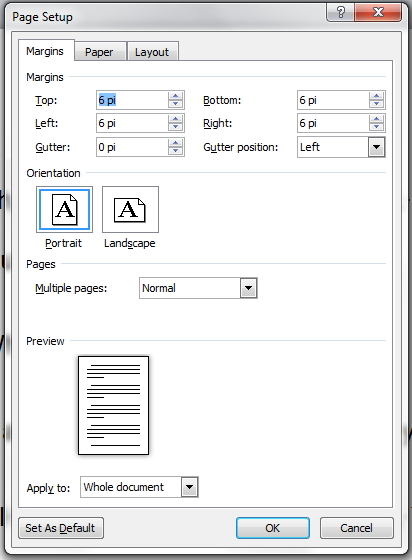
This gives us the following dialogue box:

Here's the step by step picture (remember to use the values you choose - I've gone for 12 pi top and bottom, which is just over 5cm, and 8.5 pi left and right, which is just over 3.5cm).
You'll see that the text shifts position a bit, that it extends into into the second line. Here's what happened on mine:
This happens because of the margin changes and is to be expected. We now have a radio script and, hopefully, you now have the knowledge to set other styles as you need :)

Using Format Painter

Before I go, it's probably worth mentioning the 'Format Painter'. This can be a god-send if you have one line that looks to be formatted correctly but for whatever reason you can't seem to get other lines to behave. The key to using it is to select the whole paragraph that is correct:
See those two lines that don't have 'Arial' font? I've selected the top line because this is formatted correctly. Now I need to click on 'Format painter':

Next, simply select the whole of the line, or lines, that need fixing and in an instant they will be transformed, thus:
Yay! It's all fixed! :) You'll notice that the 'Format painter' button automatically deselects at this point, which is a good thing. If you don't manage to select the whole line, you can always start again. Word won't mind and neither will you when you've fixed stuff :) The best part is, you're not going to do any damage! 
Have fun and good luck!

PS: Check this post for gotchas with regard to saving and submitting scripts.